
TL;DR: You can run powerful AI models on your own computer—no API costs, no data leaving your
machine. This guide covers Ollama, LM Studio, and other tools for local LLM hosting in 2025.
Why Run LLMs Locally?
- Privacy: Your data never leaves your computer
- Cost: No per-token API charges
- Offline access: Works without internet
- Customization: Fine-tune models for your use case
- Speed: No network latency (depends on hardware)
Hardware Requirements
What you need depends on the model size:
| Model Size | RAM | GPU VRAM | Example Models |
|---|---|---|---|
| 7B parameters | 8-16GB | 6-8GB | Mistral 7B, Llama 3.2 7B |
| 13B parameters | 16-32GB | 10-12GB | Llama 3.1 13B |
| 34B+ parameters | 32-64GB | 24GB+ | CodeLlama 34B, larger models |
| 70B+ parameters | 64GB+ | 48GB+ or multi-GPU | Llama 3.2 70B |
For most users: A 7B model on a computer with 16GB RAM and an RTX 3060/4060 (8-12GB VRAM) works
well.
Ollama (Recommended for Beginners)
Ollama is the easiest way to run LLMs locally. It’s free, open-source, and works on Mac, Windows, and Linux.
Installation
# macOS/Linux
curl -fsSL https://ollama.com/install.sh | sh

# Windows - download from ollama.com
Running a Model
# Download and run Llama 3.2
ollama run llama3.2

# Or try Mistral
ollama run mistral

# For coding
ollama run codellama
Using with APIs
Ollama runs a local API server on port 11434:
curl http://localhost:11434/api/generate -d '{
  "model": "llama3.2",
  "prompt": "Why is the sky blue?"
}'
Popular Ollama Models
| Model | Size | Best For |
|---|---|---|
| llama3.2:7b | 4.7GB | General purpose |
| mistral | 4.1GB | Fast, efficient tasks |
| codellama | 3.8GB | Code generation |
| llama3.2:70b | 40GB | Maximum quality |
| phi3 | 2.3GB | Lightweight, fast |
LM Studio (Best GUI)

LM Studio provides a beautiful desktop app for running local models. No terminal required.
Features
- Point-and-click model downloads
- Chat interface like ChatGPT
- Model comparison side-by-side
- Local API server
- Runs on Mac, Windows, Linux
Getting Started
- Download from lmstudio.ai
- Search for a model (e.g., “Llama 3.2”)
- Click Download
- Start chatting
Best For
Non-developers who want a ChatGPT-like experience locally.
GPT4All
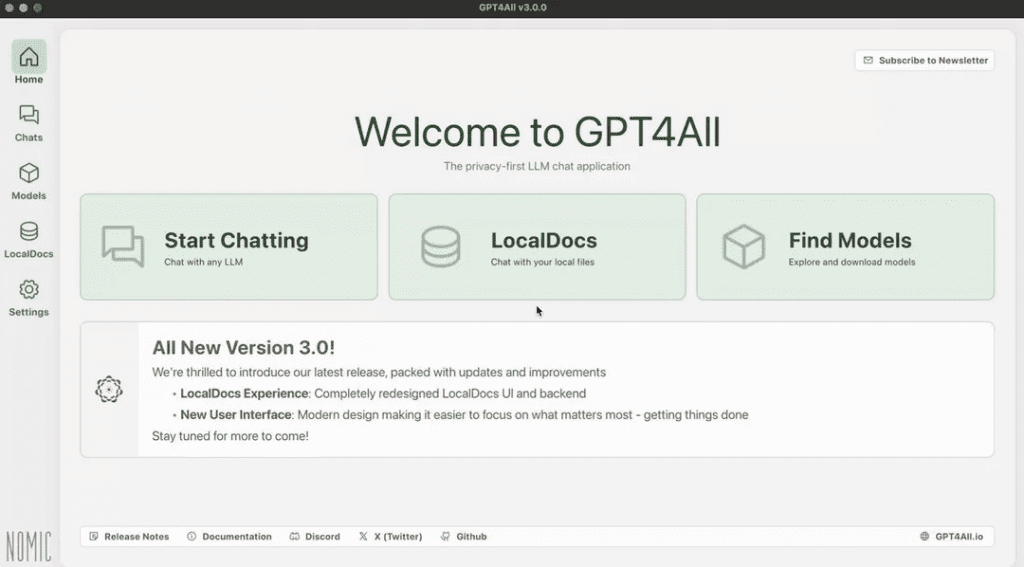
GPT4All is designed specifically for local, private AI. It includes:
- Desktop app (cross-platform)
- Curated model library
- LocalDocs feature (chat with your files)
- Privacy-focused design
Local Document Chat
GPT4All’s killer feature is LocalDocs—point it at a folder, and it can answer questions about your documents
without uploading them anywhere.
Text Generation Web UI (for Power Users)
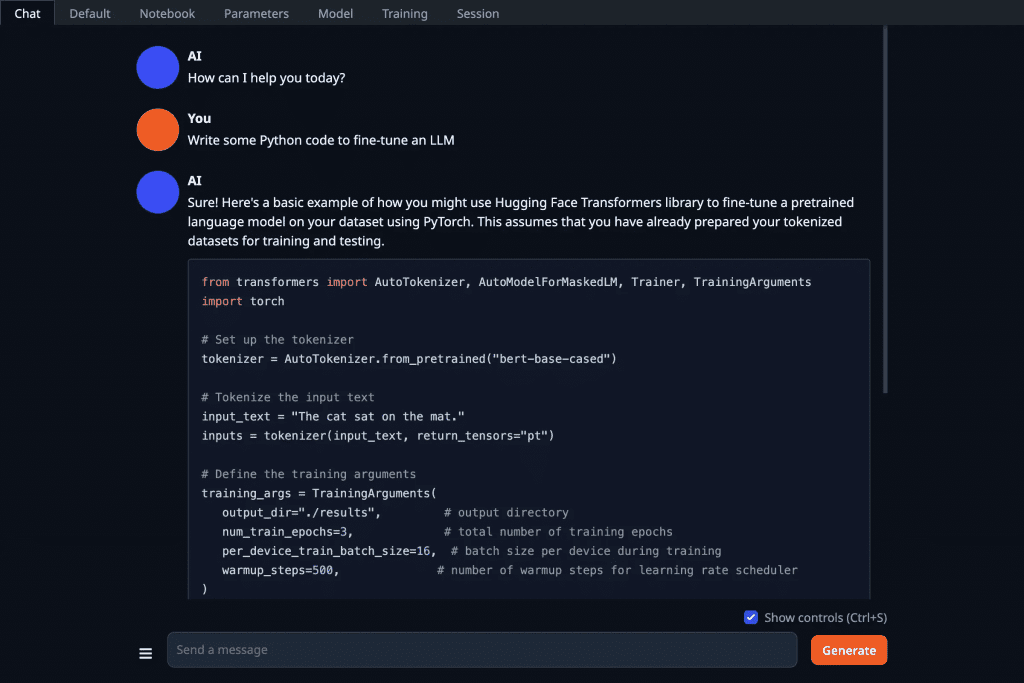
Oobabooga’s Text Generation Web UI offers the most customization:
- Support for many model formats
- Fine-tuning capabilities
- Multiple inference backends
- Extensions ecosystem
Best for: Users who want maximum control and are comfortable with setup complexity.
Model Recommendations for 2025
Best General Purpose
Gpt-oss-120b – Meta’s latest models offer the best quality-to-size ratio.
Best for Coding
CodeLlama 34B or DeepSeek Coder – Purpose-built for code generation.
Best for Low-End Hardware
Gpt-oss-20b– Great performance in smaller packages.
Best for Long Context
Llama 3.2 with 128K context – Handles large documents well.
Performance Tips
- Use quantized models: Q4 or Q5 quantization reduces size with minimal quality loss
- GPU offloading: Put as many layers on GPU as VRAM allows
- Batch requests: Increase throughput for multiple queries
- Right-size your model: Don’t use 70B when 7B does the job
Integrations
Use with VS Code/Cursor
Point your code editor’s AI features at your local Ollama server for code completion without cloud APIs.
Use with Python
from langchain_community.llms import Ollama

llm = Ollama(model="llama3.2")
response = llm.invoke("Explain quantum computing")
Use with Open WebUI
Open WebUI provides a ChatGPT-like interface that connects to Ollama. Best for teams wanting a shared local AI
interface.
Comparison Summary
| Tool | Best For | Difficulty |
|---|---|---|
| Ollama | Developers, CLI users | Easy |
| LM Studio | Non-technical users | Easiest |
| GPT4All | Document Q&A, privacy | Easy |
| Text Gen WebUI | Power users, customization | Medium |
The Bottom Line
Running LLMs locally in 2025 is easier than ever. For most users:
- Start with Ollama (if comfortable with terminal) or LM Studio (if you want a GUI)
- Try Llama 3.2 7B – it’s the best balance of quality and resource requirements
- Upgrade to larger models as needed
You don’t need to pay for API access to have AI on your machine. The local LLM ecosystem is mature, capable, and
free.