
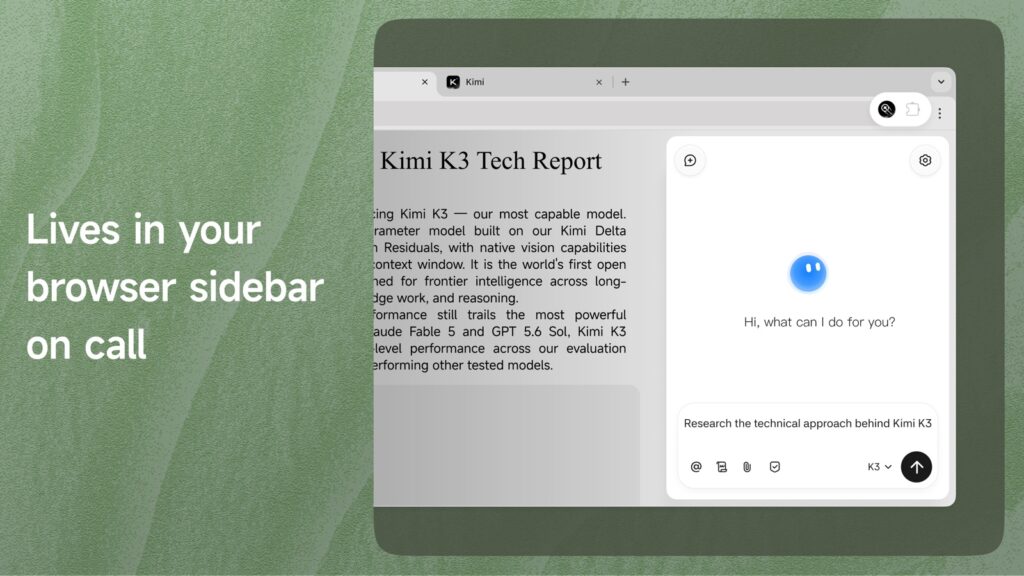

- The Release: Moonshot AI has officially launched the Kimi Browser Extension (graduating from Kimi WebBridge), now publicly available via kimi.ai/products/kimi-browser-extension and the Chrome Web Store.
- Local Client Architecture: Rather than offloading browsing to remote, headless virtual machines, the extension operates inside your local Chrome sidebar, inheriting existing logins, session cookies, and enterprise SSO credentials without leaking secrets.
- Primary Capabilities: Real-time DOM inspection, automated multi-page navigation, dynamic form interaction, cross-tab data synthesis, and autonomous table extraction into Google Sheets.
- The Skill Distillation Engine: A record-and-replay system that translates manual browser interactions into semantic, LLM-executable “Skills”—eliminating the fragility of brittle RPA selectors.
- Runtime Environment: Supported across Google Chrome, Brave, Microsoft Edge, and Arc on Manifest V3.
For months, browser automation has been split between two architectures. One approach relies on cloud-hosted virtual sandboxes—spinning up headless Linux containers in remote datacenters (the approach taken by OpenAI Operator and Anthropic’s early remote computer use prototypes). The alternative approach focuses on native browser integration—embedding agentic intelligence directly into the user’s daily browser workspace.
With the release of the Kimi Browser Extension, Moonshot AI has committed to the native browser architecture. Graduating from its developer-oriented precursor, Kimi WebBridge, the extension introduces a persistent sidebar assistant capable of navigating modern Single Page Applications (SPAs), interacting with complex DOM elements, filling multi-step web forms, and recording repetitive user workflows into reusable, self-healing “Skills.”
Here is our architectural evaluation of the Kimi Browser Extension: how the client-side perception-action loop operates, how the Skill distillation engine outperforms legacy RPA macros, its local security model, and how to deploy it into daily enterprise workflows.
From Kimi WebBridge to Kimi Browser Extension: Architectural Evolution
When Moonshot AI initially released Kimi WebBridge, it was designed as an internal developer interface. It allowed developer agents—such as the Kimi Code CLI or local Python scripts—to attach to a running Chrome instance via the Chrome DevTools Protocol (CDP) and native messaging.
While WebBridge served terminal workflows effectively, it required manual remote debugging flags (--remote-debugging-port), local terminal processes, and separate runtime environments. The new Kimi Browser Extension translates that protocol bridge into an integrated consumer and enterprise product:
- Manifest V3 Side Panel Integration: Built on Chrome’s native
sidePanelAPI, Kimi runs alongside any active tab without occluding page contents or injecting intrusive overlay iframes. - Native Session Synchronization: Users sign in directly through their verified Kimi account (
kimi.ai), synchronizing sidebar context with their wider conversational history and workspace configuration. - Interactive Step-to-Skill UI: The record-and-replay flow allows users to demonstrate workflows manually, review synthesized action graphs, and save them as invocable skills.
- Autonomous Co-Browsing: The extension evaluates active viewports, parses accessibility trees, and executes multi-step logic across tabs in real time.
Core Capabilities: Active Perception-Action Loop
Most AI browser extensions function as passive text summarizers: they dump raw HTML into an LLM context window and stream back an answer. The Kimi Browser Extension operates on a continuous, closed-loop perception-action runtime:
1. Natural Language Navigation and Web Research
Users can instruct Kimi with open-ended research tasks:
- “Find the top three flights from SFO to JFK on Friday after 6 PM, check bag fees for each, and compile a comparison table.”
- “Open the latest SEC 10-K filing for Nvidia, locate the risk factors regarding datacenter power supply, and summarize the material changes from last year.”
Kimi scrolls, parses dynamic pagination, follows relevant hyperlinks, and extracts structured datasets directly into your chat pane.
2. Autonomous Form Filling & Interactive Operations
Web applications rely on dynamic dropdowns, conditional radio buttons, date pickers, and asynchronous validations. Kimi identifies input fields through semantic label association rather than brittle selector matching, filling inputs, triggering DOM change events, and selecting matching options from custom UI frameworks (such as React Select or Radix UI).
3. Cross-Tab Synthesis & Context Carrying
The extension maintains memory across multiple related URLs. When a workflow requires querying an internal inventory dashboard, verifying addresses in a CRM, and generating a manifest in a shipping portal, Kimi carries structured payloads across tabs within the active browser session.
The Skill Engine: Distilling Demonstrations into Reusable Actions
The core differentiation of the Kimi Browser Extension is its Skill Recording Engine. In typical AI browsing sessions, users must repeatedly type lengthy prompt instructions explaining which buttons to press and which tables to export. Traditional Robotic Process Automation (RPA), conversely, relies on hardcoded click paths and fragile CSS selectors that break whenever a site’s layout shifts.
Kimi resolves this tradeoff by capturing user demonstrations through semantic event traces:
| Automation Dimension | Traditional RPA (UiPath / Puppeteer) | Standard AI Chat Copilots | Kimi Browser Skills |
|---|---|---|---|
| Target Anchoring | Rigid DOM selectors (ID, XPath, CSS) | None (text summarization only) | Semantic intent + layout hierarchy |
| Resilience to UI Drift | Fails immediately on class/tag change | N/A | Self-healing via accessibility metadata |
| Variable Generalization | Requires explicit regex and scripting | High, but unguided | Extracts parameters automatically |
| Authoring Workflow | Code-heavy scripts or rigid click recorders | Repetitive prompt engineering | Demonstrate once with mouse/keyboard, auto-compiled |
How Step-to-Skill Recording Works in Practice
- Activate Recording Mode: Open the Kimi sidebar, select “Record actions as a skill”, and assign an intuitive label (e.g.,
Export Weekly SpendorSync CRM Invoices). - Perform the Workflow: Navigate through your target portal, apply filters, fill query parameters, click export buttons, or submit data. Kimi captures the DOM event sequence alongside semantic properties (accessible roles, surrounding text, layout hierarchy).
- Automated Synthesis: The agent layer compiles the event sequence into an abstract execution graph, isolating variable inputs (such as dates or order numbers) and establishing wait conditions for asynchronous server responses.
- Replay via Slash Command: In any subsequent browsing session, typing
/skill:nameexecutes the routine autonomously, prompting only when variable inputs require runtime specification.
Security Architecture: Local Client vs. Remote Cloud Sandboxes
The primary obstacle confronting enterprise adoption of AI browser agents is session security. Cloud-hosted agent sandboxes (such as remote headless Chromium containers hosted in AWS or GCP) introduce three structural failure modes:
- Credential Exposure: Enabling a cloud agent to interact with internal dashboards (Jira, Salesforce, GitHub, Stripe) requires providing raw passwords, granting elevated OAuth scopes, or exporting active session cookies to third-party infrastructure.
- Anti-Bot & WAF Interceptions: Requests originating from public cloud datacenter IP ranges are heavily penalized by Cloudflare, Akamai, and perimeter anti-bot defenses, causing automated agents to stall on CAPTCHAs.
- Session Fragmentation: Users must repeatedly perform multi-factor authentication inside an isolated, remote browser profile.
The Local Execution Advantage
The Kimi Browser Extension executes inside your authenticated local Chrome process, avoiding remote delegation risks:
- Zero-Credential Delegation: Because the assistant operates inside your daily browser profile, it utilizes your existing logged-in sessions, hardware security keys, and active 2FA states. Kimi never handles, transmits, or stores user passwords.
- Legitimate Client Fingerprint: Network requests originate from your residential or corporate IP address with authentic browser hardware characteristics, bypassing false-positive bot classifications.
- Human-in-the-Loop Safeguards: Destructive operations (such as finalizing payment checkouts, deleting data rows, or updating access permissions) trigger a confirmation dialog in the sidebar, ensuring the user retains execution authority.
Deployment: Getting Started in Four Steps
Setting up the extension and configuring custom skills on any Chromium-based browser takes under two minutes:
Step 1: Install the Extension
- Navigate to the official portal at kimi.ai/products/kimi-browser-extension or search for Kimi Browser Extension in the Chrome Web Store.
- Click Add to Chrome and approve standard browser permissions.
Step 2: Pin and Authenticate
- Pin the Kimi extension icon to your browser toolbar for immediate access.
- Click the icon or press the keyboard shortcut to open the Chrome Side Panel.
- Sign in with your verified Kimi account. If you are already authenticated on
kimi.ai, your session will synchronize automatically.
Step 3: Run Your First Web Task
- Navigate to any information-dense webpage (such as an academic paper, SEC earnings filing, or competitor pricing table).
- In the Side Panel, issue a direct research command (for example:
"Compare all subscription tiers on this page, identify hidden fees, and summarize API rate limits"). - Kimi parses the active DOM elements, handles dynamic pagination, and streams the structured synthesis directly into the sidebar.
Step 4: Record Your First Custom Skill
- Click the Skills tab in the sidebar and choose Record actions as a skill.
- Perform your routine workflow naturally (such as searching a documentation site, setting filter tags, and triggering a CSV download).
- Click Finish Recording, review the compiled action graph, and assign a shorthand identifier.
- The next time that task is required, type
/in the sidebar to execute the skill autonomously.
High-Value Workflows for Kimi Skills
Record navigation flows across Grafana or AWS CloudWatch. Train a skill to isolate P99 latency spikes, filter error logs by container ID, and format incident summaries.
Extract pricing matrices, security certifications (SOC 2, ISO 27001), and API limits across multiple SaaS vendors into a standardized evaluation sheet.
Record recurring export sequences to retrieve monthly PDF statements from cloud vendors (AWS, Twilio, OpenAI, Google Cloud) into designated storage buckets.
Audit competitor product releases, pricing changes, or documentation updates on a recurring schedule using deterministic navigation macros.
Official Media & Architectural Demonstrations
Official media assets illustrating how Kimi coordinates between the Chrome Side Panel, local CDP events, and the Skill Store:
| Media Asset | Optimized CDN Stream | Payload & Codec | Interactive Narrative Context |
|---|---|---|---|
| Official Full Tutorial | Watch Tutorial MP4 | 5.1 MB (H.264 FastStart, 01:17) | Full platform tour: sidebar navigation, multimodal inspection, and skill recording. |
| Live Trace 01: Sheets | Watch Sheets MP4 | 1.7 MB (H.264 FastStart, 00:29) | Autonomous scraping of table specs and live streaming injection into Google Sheets. |
| Live Trace 02: Multi-Tab | Watch Multi-Tab MP4 | 3.9 MB (H.264 FastStart, 00:36) | Cross-site swarm search across separate tabs with consolidated matrix output. |
| Live Trace 03: Skills | Watch Skills MP4 | 3.6 MB (H.264 FastStart, 00:34) | Step recording demonstration and compile loop into invocable /skill macro. |
Frequently Asked Questions (Technical & Architectural FAQ)
Kimi WebBridge was an internal developer bridge connecting terminal agent CLI runners (such as Kimi Code) to a running browser via the Chrome DevTools Protocol. The Kimi Browser Extension packages this underlying protocol engine into an integrated consumer and enterprise product featuring a native Manifest V3 Side Panel, one-click account synchronization, and an in-browser record-and-replay Skill compiler.
Unlike cloud-hosted AI agents (such as OpenAI Operator or Anthropic remote sandboxes) that route requests through heavily flagged datacenter IP ranges (AWS, GCP, Azure), Kimi executes client-side. Web traffic originates from your genuine residential or corporate network, retaining existing 2FA cookies, local session credentials, and authentic GPU hardware fingerprints.
Traditional RPA tools (like UiPath or Puppeteer scripts) rely on rigid XPath, CSS selectors, or coordinate clicks that break whenever a webpage changes its styling or layout. Kimi translates recorded user actions into a semantic execution graph based on accessible element names, surrounding contextual text, and intent models. If a button moves or changes its class name, Kimi self-heals the execution trace dynamically.
No. Kimi utilizes zero-credential delegation. Because it runs within your authenticated Chrome session, it interacts with pages you have already unlocked. The extension enforces a human-in-the-loop pause modal before any destructive action (such as executing payments or deleting records), requiring explicit user confirmation.
Strategic Outlook: The Client-Side Agentic Horizon
The release of the Kimi Browser Extension illustrates a key architectural pivot in autonomous web agents. By graduating Kimi WebBridge from a developer tool into a consumer extension, Moonshot AI positions the everyday desktop browser as the primary execution environment for autonomous agents.
Where cloud sandbox agents suffer from datacenter IP blocks, session desynchronization, and the security risk of streaming enterprise cookies to remote hosts, the local sidebar assistant with self-healing skill compilation provides a safer, lower-latency path for human-agent collaboration.
You can install the extension directly from kimi.ai/products/kimi-browser-extension or via the Chrome Web Store.